Guide: Keenious Research Explorer
Keenious is an Al search tool that recommends sources based on your interactions, or text that you upload, and provides full-text access to those recommendations through our library databases.
Why Keenious?
- Go beyond conventional searches: Discover other publications you might have otherwise missed through traditional keyword searches and identify topics, gaps, and potential keywords for deeper searching.
- Streamlined article access: Connect directly to millions of articles available through the NC State University Libraries right from your Word document, Google document, or browser.
- Your work stays private: Your searches or uploaded text aren't retained long term or used for training, ensuring your research is secure and compliant with NC State University's Al policies.
Getting Started
Visit the Libraries' main page for Keenous Research Explorer for details on setting up and logging into a Keenious account.
When using Keenious from off-campus, sign in to your account to get access to Libraries' subscriptions through Keenious.
Searching with Keenious
You can use Keenious to discover sources related to your research by giving it natural-language prompts, or even the text of an article or your own manuscript. This means it can fit into your existing research and writing processes. You can use it at the beginning of your research journey to explore an idea or field you are interested in, or to identify articles that are related to projects that you’ve already developed. Keenious also offers a Microsoft Word add-in and Google Docs add-on to allow you to use it alongside your drafts as you write them.
To use Keenious to discover articles, start with a piece of input text—something that is relevant to what you’re hoping to find research on. It can be in the form of free text or a PDF. The more details and context you add, the better results you’ll get. Once Keenious gives you a list of recommended articles, you can refine these results using the provided filters or by using the chat function to guide the tool.
To learn more, check out this short introduction to Keenious from the publisher.
Google Docs Add-on
With the Keenious add-in for Google Docs, you can access Keenious from within your Google Docs documents as you write.
The Keenious add-on for Google Docs is available through the Google Apps Marketplace. You can also install the extension from within Google Docs itself:
- From Google Docs, find the Extensions menu near the top of the screen. Select "Add-ons", then "Get Add-ons".
- A pop-up will open where you can search the Google Workspace Marketplace. Search for "Keenious", then select "Install" under the tile for the Keenious extension.
- You'll be asked to give Keenious permission to use your information. Select "Continue" to allow Keenious to use your info and insall the add-on.
- If you're not already signed into Keenious, you'll be asked to sign in using your NC State Google account.
- You will then need to give the Keenious add-on permission to view and manage your Google Docs documents and to display and run third-party content. Check the checkboxes to grant these permissions, then select "Continue".
- You'll get a popup indicating that Keenious has been installed. Select "Done", then close the Marketplace popup.
To activate the Keenious add-on, open the Extensions menu, then select the "Keenious" menu item. Finally, select "Open Keenious" to open a Keenious sidebar in your document. Make sure you’re signed in to Keenious, then click the “Search for relevant articles” button, and it will analyze your paper and recommend literature based on the content of the document. You can then refine the results further by using filters or interacting through the chat function.
Microsoft Word Add-in
With the Keenious add-in for Microsoft Word, you can use Keenious directly alongside your drafts as you write them.
You can find the Keenious add-in at the Microsoft Marketplace. You can also install the add-in from within Word:
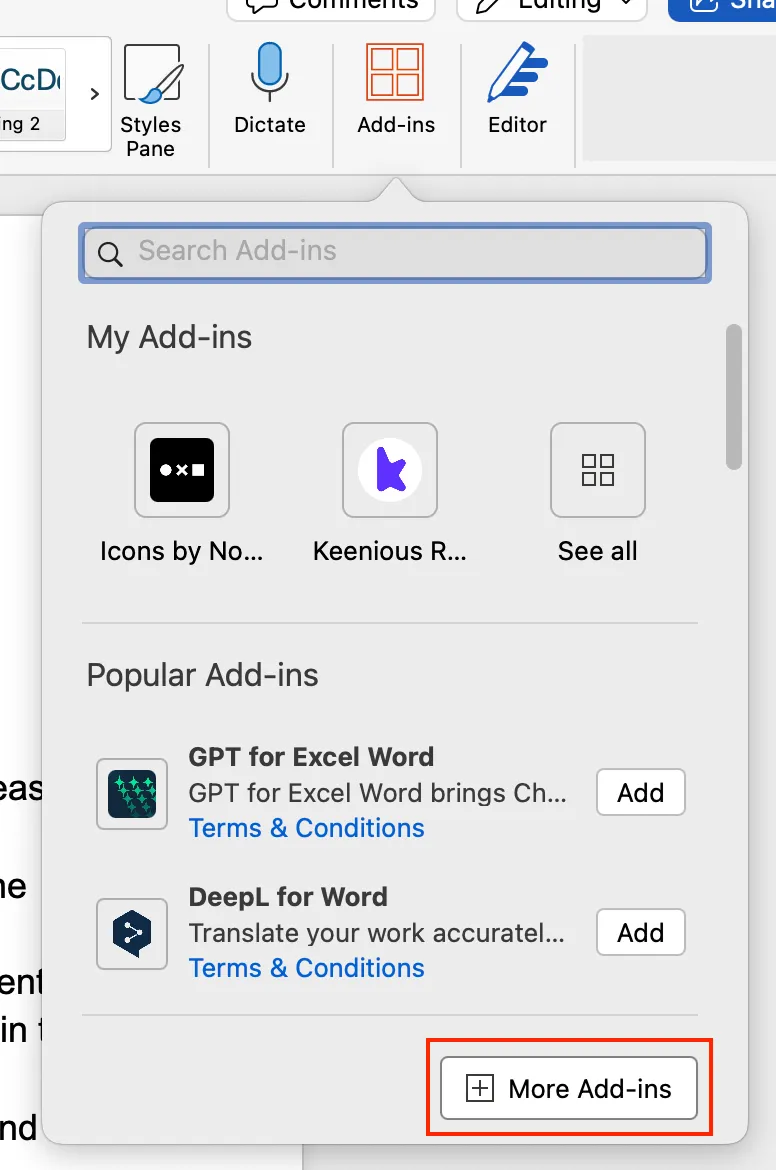
- In Word, select the "Home" tab, then select "Add-ins".

- In the window that opens, select "More Add-ins".
- The Office Add-Ins store will open. Search for ‘Keenious’, then select "Add" next to the add-in called "Keenious Research Explorer".
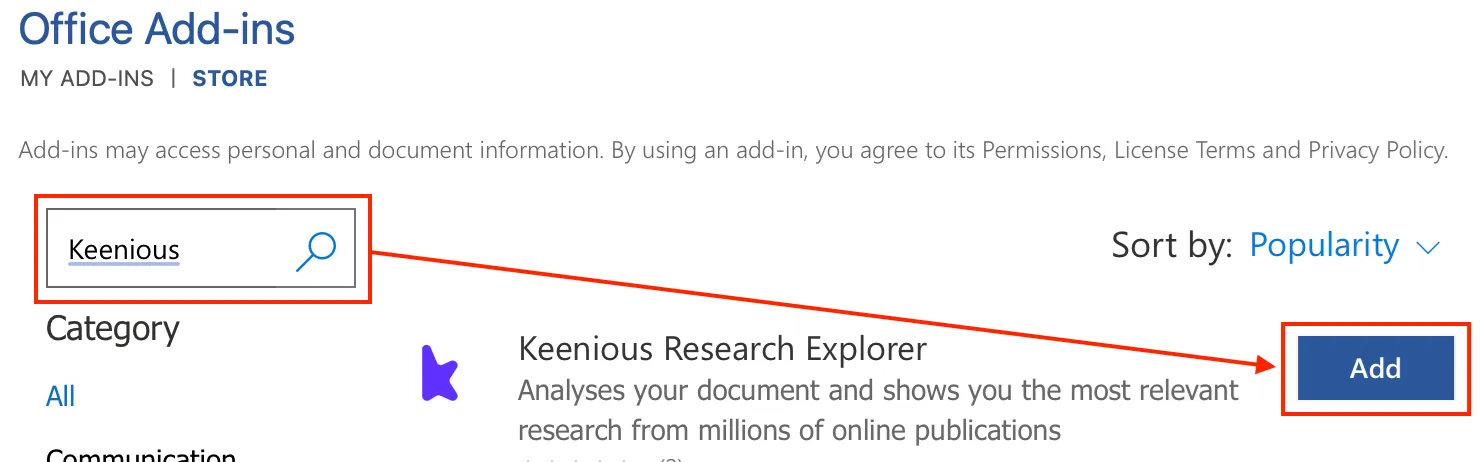
Once you've added the tool, it will be available in Word's ribbon menu.
With the add-in installed, you can select the Keenious Research Explorer button on your home ribbon to open Keenious alongside your draft. Make sure you’re signed in to Keenious, then click the “Search for relevant articles” button, and it will analyze your paper and recommend literature based on the content of the document. You can then refine the results further by using filters or interacting through the chat function.